2.6.3 Flipping
The active layer can be flipped around its vertical or horizontal axes
with the Flip tool from the Toolbox. A flip is
performed by clicking on the Flip tool icon, represented by a
two-way arrow in the Toolbox, and then by clicking in the image
window. When in the image window, the mouse cursor appears as a
two-way arrow that is oriented horizontally for horizontal flips and
vertically for vertical flips.
As an example of using the Flip tool,
Figure
2.22(a)
Figure 2.22:
Using the Flip tool
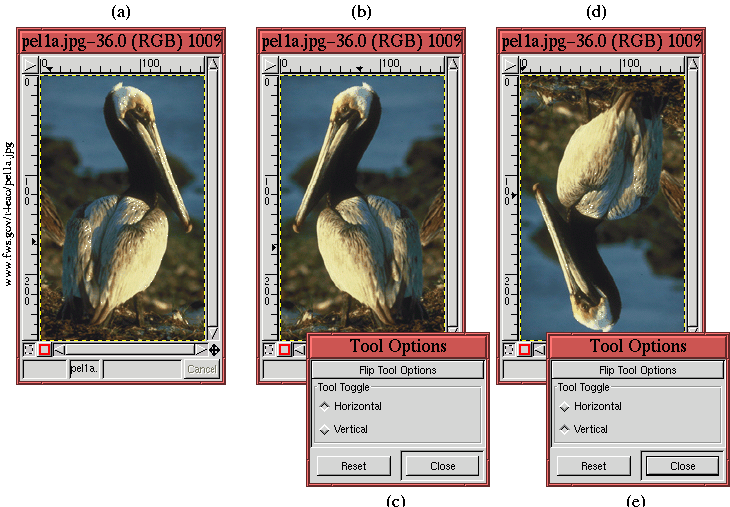 |
shows an image of a pelican and Figure
2.22(b) shows
the result after flipping the image horizontally. Note that the
Horizontal radio button is selected in the
Tool Options dialog,
as shown in Figure
2.22(c). Selecting the Vertical
radio button, as shown in Figure
2.22(e), produces the
result in Figure
2.22(d).
Note that if the Horizontal radio button is selected in the Tool
Options dialog the flip option can be momentarily toggled to Vertical
by Control-clicking in the image window. Similarly, if the Vertical
radio button is selected in the dialog, the option can be toggled to
Horizontal option by Control-clicking in the image window.