Restart the Samba daemons and look for the
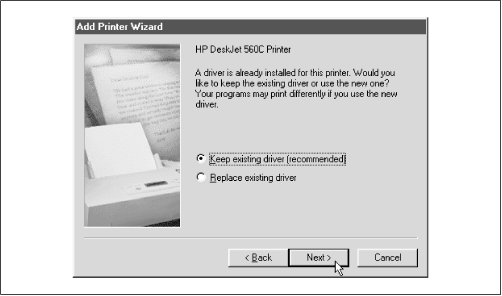
[hpdeskjet] share under the machine name in the Network Neighborhood. At this point, if you click on the printer icon, you should begin the printer setup process and come to the dialog shown in
Figure 7.6.
This is different from the dialog you saw earlier when setting up a printer. Essentially, the dialog is asking if you wish to accept the driver that is "already installed" - in other words, offered by Samba. Go ahead and keep the existing driver, and press the Next button. At this point, you can give the printer a name and print out a test page. If it works, the setup should be complete. You should be able to repeat the process now from any Windows client.