9.5 Configuring and Accessing a Windows Network Printer
Being part of a corporate network and authenticating against a Windows
Active Directory server, you can access corporate resources, such as
printers. KDE allows you to configure printing from your Linux
client to a Windows network printer.
To configure a Windows network printer for use through your Linux
workstation, proceed as follows:
-
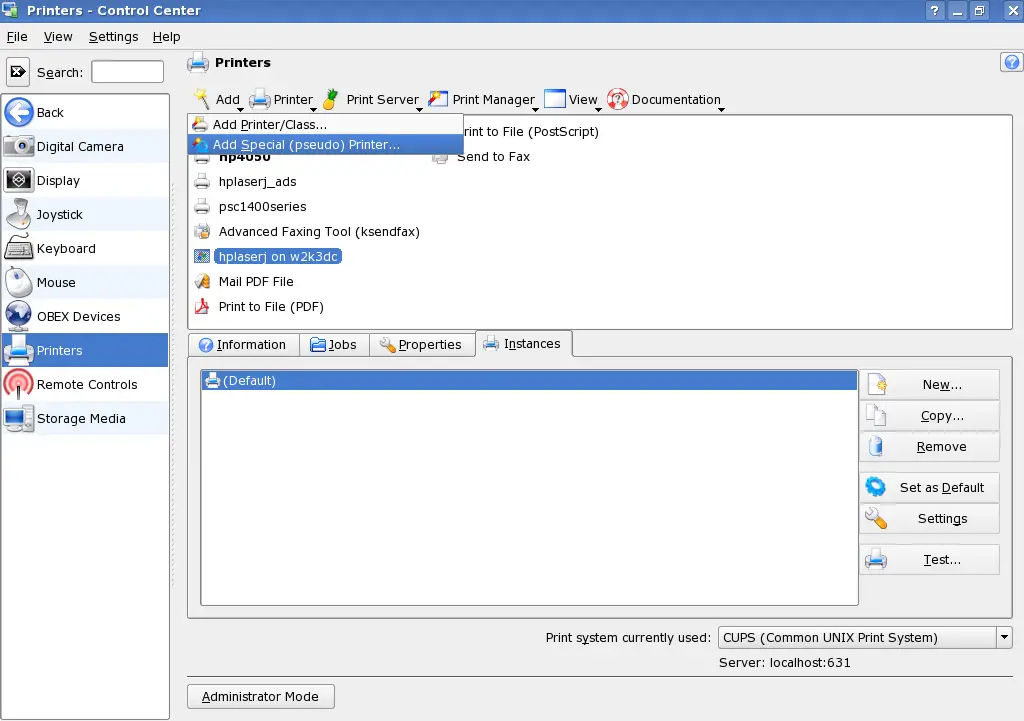
Start the KDE Control Center from the main menu.
-
Select .
-
Select .
-
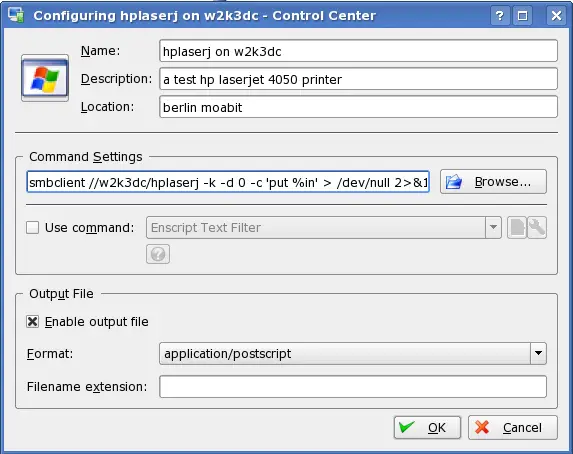
Enter the printer's name, a short description, and its
location.
-
Enter a command line similar to the following example in
:
smbclient //domain/printer -k -d 0 -c 'put %in' > /dev/null 2>&1
Replace domain and
printer with the exact values matching your
setup.
-
Check and select
to pipe all your print jobs to a
postscript file.
-
Leave the printer configuration with .
-
Leave the KDE Control Center with .
The printer is ready for use.
To print to the Windows network printer configured above, just select
it from the list of available printers in KPrinter.