12.3. One Plain and One mod_perl-Enabled Apache Server
As mentioned earlier, when running scripts
under mod_perl you will notice that the httpd
processes consume a huge amount of virtual memory—from 5 MB-15
MB, and sometimes even more. That is the price you pay for the
enormous speed improvements under mod_perl, mainly because the code
is compiled once and needs to be cached for later reuse. But in fact
less memory is used if memory sharing takes place. Chapter 14 covers this issue extensively.
Using these large processes to serve static objects such as images
and HTML documents is overkill. A better approach is to run two
servers: a very light, plain Apache server to serve static objects
and a heavier, mod_perl-enabled Apache server to serve requests for
dynamically generated objects. From here on, we will refer to these
two servers as httpd_docs (vanilla Apache) and
httpd_perl (mod_perl-enabled Apache). This
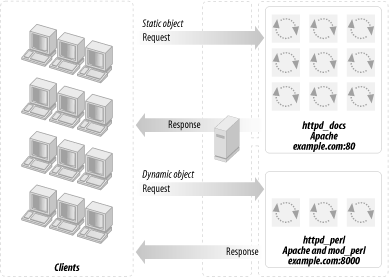
approach is depicted in Figure 12-2.
Figure 12-2. Standalone and mod_perl-enabled Apache servers
The advantages of this setup are:
The heavy mod_perl processes serve only dynamic requests, so fewer of
these large servers are deployed.
MaxClients,
MaxRequestsPerChild, and related parameters can
now be optimally tuned for both the httpd_docs
and httpd_perl servers (something we could not
do before). This allows us to fine-tune the memory usage and get
better server performance.
Now we can run many lightweight httpd_docs
servers and just a few heavy httpd_perl servers.
The disadvantages are:
The need for two configuration files, two sets of controlling scripts
(startup/shutdown), and watchdogs.
If you are processing log files, you will probably have to merge the
two separate log files into one before processing them.
Just as in the one-server approach, we still have the problem of a
mod_perl process spending its precious time serving slow clients when
the processing portion of the request was completed a long time ago.
(Deploying a proxy, covered in the next section, solves this
problem.)
As with the single-server approach, this is not a major disadvantage
if you are on a fast network (i.e., an Intranet). It is likely that
you do not want a buffering server in this case.
Note that when a user browses static pages and the base URL in the
browser's location window points to the static
server (for example
http://www.example.com/index.html), all relative
URLs (e.g., <a href="/main/download.html">)
are being served by the plain Apache server. But this is not the case
with dynamically generated pages. For example, when the base URL in
the location window points to the dynamic server (e.g.,
http://www.example.com:8000/perl/index.pl), all
relative URLs in the dynamically generated HTML will be served by
heavy mod_perl processes.
You must use fully qualified URLs, not relative
ones. http://www.example.com/icons/arrow.gif is
a full URL, while /icons/arrow.gif is a relative
one. Using <basehref="http://www.example.com/"> in the
generated HTML is another way to handle this problem. Also, the
httpd_perl server could rewrite the requests
back to httpd_docs (much slower) and you still
need the attention of the heavy servers.
This is not an issue if you hide the internal port implementations,
so the client sees only one server running on port 80, as explained
later in this chapter.
12.3.1. Choosing the Target Installation Directories Layout
If you're going
to run two Apache servers,
you'll need two complete (and different) sets of
configuration, log, and other files. In this scenario
we'll use a dedicated root directory for each
server, which is a personal choice. You can choose to have both
servers living under the same root, but this may cause problems since
it requires a slightly more complicated configuration. This decision
would allow you to share some directories, such as
include (which contains Apache headers), but
this can become a problem later, if you decide to upgrade one server
but not the other. You will have to solve the problem then, so why
not avoid it in the first place?
First let's prepare the sources. We will assume that
all the sources go into the /home/stas/src
directory. Since you will probably want to tune each copy of Apache
separately, it is better to use two separate copies of the Apache
source for this configuration. For example, you might want only the
httpd_docs server to be built with the
mod_rewrite module.
Having two independent source trees will prove helpful unless you use
dynamically shared objects (covered later in this chapter).
Next, put the Apache source into the
/home/stas/src/httpd_docs directory (replace
1.3.x with the version of Apache that you have
downloaded):
panic% cd /home/stas/src/httpd_docs
panic% tar xvzf ~/src/apache_1.3.x.tar.gz
Now prepare the httpd_perl server sources:
panic% cd /home/stas/src/httpd_perl
panic% tar xvzf ~/src/apache_1.3.x.tar.gz
panic% tar xvzf ~/src/modperl-1.xx.tar.gz
panic% ls -l
drwxr-xr-x 8 stas stas 2048 Apr 29 17:38 apache_1.3.x/
drwxr-xr-x 8 stas stas 2048 Apr 29 17:38 modperl-1.xx/
We are going to use a default Apache directory layout and place each
server directory under its dedicated directory. The two directories
are:
/home/httpd/httpd_perl/
/home/httpd/httpd_docs/
We are using the user httpd, belonging to the
group httpd, for the web server. If you
don't have this user and group created yet, add them
and make sure you have the correct permissions to be able to work in
the /home/httpd directory.
12.3.2. Configuration and Compilation of the Sources
Now we
proceed to configure and compile the sources using the directory
layout we have just described.
12.3.2.1. Building the httpd_docs server
The first step
is to configure the source:
panic% cd /home/stas/src/httpd_docs/apache_1.3.x
panic% ./configure --prefix=/home/httpd/httpd_docs \
--enable-module=rewrite --enable-module=proxy
We need the mod_rewrite and mod_proxy modules, as we will see later,
so we tell ./configure to build them in.
You might also want to add —layout, to see
the resulting directories' layout without actually
running the configuration process.
Another approach would be to use the
—target option while configuring the
source, which makes the last two commands unnecessary.
panic% ./configure --prefix=/home/httpd/httpd_docs \
--target=httpd_docs \
--enable-module=rewrite --enable-module=proxy
panic% make
panic# make install
Since we told ./configure that we want the
executable to be called httpd_docs (via
—target=httpd_docs), it performs all the
naming adjustments for us.
The only thing that you might find unusual is that
apachectl will now be called
httpd_docsctl and the configuration file
httpd.conf will now be called
httpd_docs.conf.
We will leave the decision making about the preferred configuration
and installation method to the reader. In the rest of this guide we
will continue using the regular names that result from using the
standard configuration and the manual executable name adjustment, as
described at the beginning of this section.

12.3.2.2. Building the httpd_perl server
Now we
proceed with the source configuration and installation of the
httpd_perl server.
Notice that just like in the httpd_docs
configuration, you can use
—target=httpd_perl. Note that this option
has to be the very last argument in APACI_ARGS;
otherwise make test tries to run
httpd_perl, which fails.
Now build, test, and install httpd_perl.
panic% make && make test
panic# make install
Upon installation, Apache puts a stripped version of
httpd at
/home/httpd/httpd_perl/bin/httpd. The original
version, which includes debugging symbols (if you need to run a
debugger on this executable), is located at
/home/stas/src/httpd_perl/apache_1.3.x/src/httpd.
When we
have completed the build process, the last stage before running the
servers is to configure them.
12.3.3.1. Basic httpd_docs server configuration
Configuring the
httpd_docs server is a very easy task. Open
/home/httpd/httpd_docs/conf/httpd.conf in your
favorite text editor and configure it as you usually would.
Now you can start the server with:
/home/httpd/httpd_docs/bin/apachectl start
12.3.3.2. Basic httpd_perl server configuration
Now we
edit the /home/httpd/httpd_perl/conf/httpd.conf
file. The first thing to do is to set a Port
directive—it should be different from that used by the plain
Apache server (Port 80), since we cannot bind two
servers to the same port number on the same IP address. Here we will
use 8000. Some developers use port 81, but you can bind to ports
below 1024 only if the server has root
permissions. Also, if you are running on a multiuser machine, there
is a chance that someone already uses that port, or will start using
it in the future, which could cause problems. If you are the only
user on your machine, you can pick any unused port number, but be
aware that many organizations use firewalls that may block some of
the ports, so port number choice can be a controversial topic.
Popular port numbers include 80, 81, 8000, and 8080. In a two-server
scenario, you can hide the nonstandard port number from firewalls and
users by using either mod_proxy's
ProxyPass directive or a proxy server such as
Squid.
Now we proceed to the mod_perl-specific directives.
It's a good idea to add them all at the end of
httpd.conf, since you are going to fiddle with
them a lot in the early stages.
First, you need to specify where all the mod_perl scripts will be
located. Add the following configuration directive:
# mod_perl scripts will be called from
Alias /perl /home/httpd/httpd_perl/perl
From now on, all requests for URIs starting with
/perl will be executed under mod_perl and will
be mapped to the files in the directory
/home/httpd/httpd_perl/perl.
Now configure the /perl location:
PerlModule Apache::Registry
<Location /perl>
#AllowOverride None
SetHandler perl-script
PerlHandler Apache::Registry
Options ExecCGI
PerlSendHeader On
Allow from all
</Location>
This configuration causes any script that is called with a path
prefixed with /perl to be executed under the
Apache::Registry module and as a CGI script (hence
the ExecCGI—if you omit this option, the
script will be printed to the user's browser as
plain text or will possibly trigger a "Save
As" window).
This is only a very basic configuration. Chapter 4
covers the rest of the details.
Once the configuration is complete, it's a time to
start the server with:
/home/httpd/httpd_perl/bin/apachectl start
12.2. Standalone mod_perl-Enabled Apache Server
12.4. One Light Non-Apache and One mod_perl-Enabled Apache Server