-
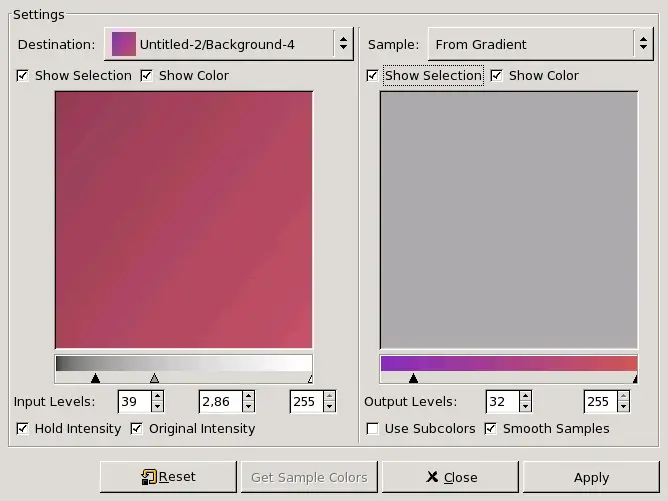
Destination, Sample
-
By default, displayed image previews reproduce the image you
invoked the filter from.
The sample can be the whole preview, or a
selection of this preview. With the drop list, you can select
another sample-image among the names of images present on
your screen when you called the filter. If you choose
From Gradient (or From Inverse
Gradient), the selected gradient in Gradient Dialog
(or its inverse) will be the sample. It will be displayed into
the gradient bar below the sample preview. The sampling preview
is greyed out and two cursors allow you to select the gradient
range that will be applied to the image or selection.
Destination is, by default, the source
image. The drop list displays the list of images present on your
screen when you evoked the filter and allow you to select
another destination image. If there is a selection in this
image, it will be gray-scaled, else the whole preview will be
gray-scaled.
-
Show Selection
-
This option toggles between the whole image and the selection,
if it exists.
-
Show Colors
-
This option toggles between colors and gray-scale.
-
Get Sample Colors
-
When you click on this button, the gradient bar below the
sample preview displays colors of the sample. If your sample
holds few colors, transitions may be abrupt. Check
Smooth Sample Colors option to improve them.
Use Subcolors is more difficult to
understand. Let's say first that in a greyscale image there is
information only for Value (luminosity, more or less light). In a
RGB image, each pixel has information for the three colors and
Value. So, pixels with different color may have the same Value.
If this option is checked, colors will be mixed and applied to
Destination pixels having that Value. If it is unchecked, then
the dominating color will be applied.
-
Out Levels
-
Two input boxes and two sliders act the same: they limit the
color range which will be applied to destination image. You can
choose this range accurately. Result appears interactively in
destination preview.
-
In Levels
-
Three input boxes and three sliders allow to fix importance of
dark tones, mid tones and light tones. Result appears
interactively in destination preview.
-
Apply Button
-
When you are satisfied with the result on destination preview,
click on Apply to apply results onto
destination image.
-
Hold Intensity
-
If this option is checked, the average light intensity of
destination image will be the same as that of source image.
-
Original Intensity
-
If this option is checked, the In levels intensity settings will
not be taken in account: original intensity will be preserved.












![[Caution]](../images/caution.png)